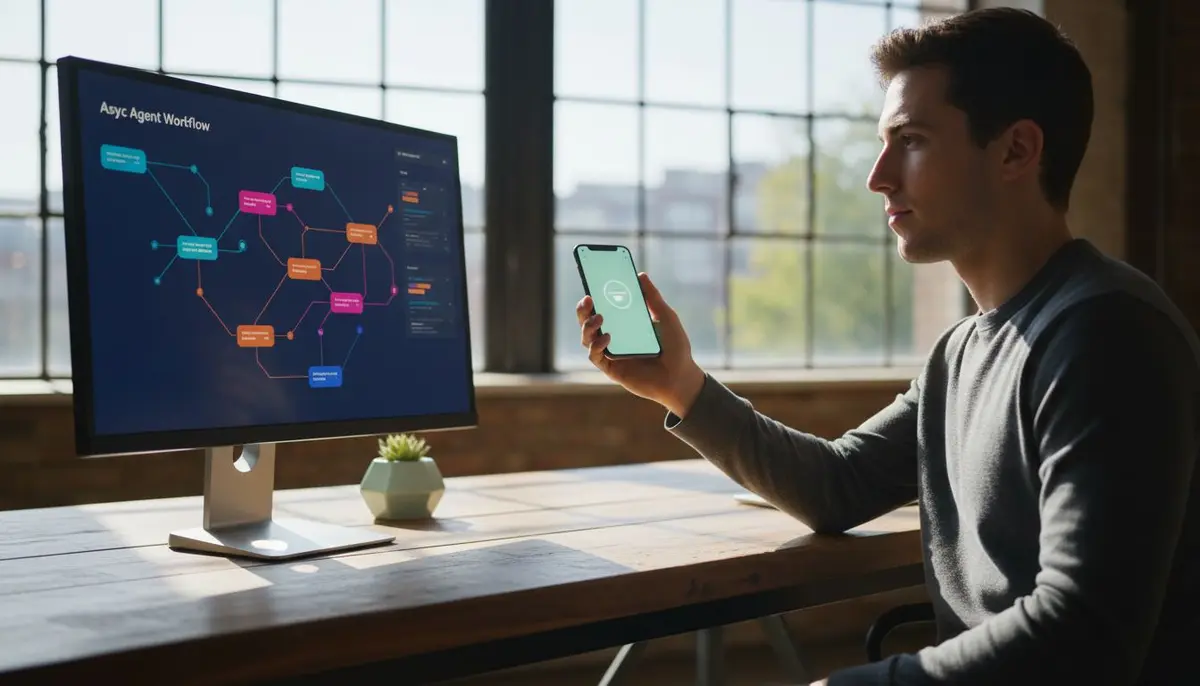
Running AI Coding Agents Overnight: Setup, Monitoring, and Safety
By MobileVibe Team · August 7, 2026 · 16 min read
Running AI Coding Agents Overnight: Setup, Monitoring, and Safety
Quick answer
Running an ai agent running overnight means letting Claude, Codex, Cursor, or Windsurf continue working on your own computer while you sleep, then checking progress from your phone in the morning. With the right approval strategy, power settings, and remote monitoring, you can ship work asynchronously without babysitting every step or risking runaway changes.
Key takeaways
- Overnight agent runs let you start a task before bed and wake up to completed work, diffs, or a clear approval prompt—no 24/7 screen time required.
- Power and network settings matter: disable sleep, keep your desktop online, and ensure the Desktop Connector stays running.
- Approval strategy determines safety: auto-approve for low-risk refactors, manual approval for anything touching auth, secrets, or production config.
- Remote monitoring from your phone (via MobileVibe) lets you check agent progress, approve blocked steps, or pause a runaway session without opening a laptop.
- Quota and re-auth handling varies by agent: Claude and Codex may pause and wait; Cursor and Windsurf behavior depends on host-app support and session state.
- Security: agent history and project files stay on your own computer; MobileVibe’s cloud only routes session metadata and doesn’t store your local directories.
- Multiple agents can run in parallel across different folders or worktrees, each as a separate conversation you monitor from one mobile inbox.
Why Overnight Agent Sessions Matter for Async Development
Developers who direct AI coding agents don’t type every line—they describe the task, review diffs, and approve next steps. That workflow naturally creates waiting periods: the agent analyzes a codebase, generates a refactor, runs tests, or iterates on feedback. If you’re awake and at your desk, you can approve each step immediately. If you’re asleep, commuting, or focused on something else, the agent either blocks or you miss hours of potential progress.
Overnight agent runs solve this by letting the agent continue working on your real computer—with its filesystem, terminal, and tools—while you’re away. You wake up to one of three outcomes: the task finished and you review the diff; the agent hit a decision point and is waiting for approval; or it encountered a quota limit, error, or re-auth prompt you can resolve from your phone. This async pattern is especially valuable for:
- Large refactors or migrations that touch dozens of files and take multiple iterations to stabilize.
- Test suite fixes where the agent runs tests, reads failures, and tries again—potentially for hours.
- Documentation generation or code analysis that doesn’t require constant human input.
- Parallel workstreams where you run separate agents in different worktrees or folders, each making progress independently.
The alternative—staying awake to click “approve” every few minutes, or starting fresh each morning and losing context—wastes your time and the agent’s momentum. Overnight runs turn idle hours into productive ones, as long as you set up power, approval, and monitoring correctly.
Setting Up Your Desktop for Unattended Agent Runs
An ai agent running overnight depends on your desktop staying online, awake, and reachable. If your computer sleeps, the agent pauses; if the Desktop Connector disconnects, you lose remote visibility. Here’s the checklist:
Power and sleep settings
- macOS: System Settings → Energy → disable “Put hard disks to sleep when possible” and set “Prevent automatic sleeping when the display is off” (or use
caffeinatein a terminal). - Windows: Settings → System → Power & sleep → set “When plugged in, PC goes to sleep after” to “Never.”
- Laptop users: plug in your machine or ensure the battery lasts through the night (8+ hours of agent work can drain a battery quickly).
Network stability
- Wired Ethernet is more reliable than Wi-Fi for overnight sessions.
- If using Wi-Fi, disable “disconnect when idle” settings and ensure your router doesn’t reboot overnight.
- VPN or firewall: if your desktop is behind a corporate VPN, confirm it stays connected or whitelist the Desktop Connector’s outbound tunnel.
Desktop Connector
- Install and pair the MobileVibe Desktop Connector (macOS Apple Silicon or Windows 10+) before starting your overnight run.
- The Connector runs as a lightweight tray/menu-bar app and exposes your desktop through a private, per-desktop tunnel secured by a short-lived connect token.
- Check the status icon: green means paired and reachable; red or gray means the tunnel is down and you won’t see agent progress from your phone.
- Auto-start on login (optional but recommended): configure the Connector to launch at boot so it’s always available.
Agent surface and folder
- Choose the right surface: Claude IDE, Claude CLI, Codex CLI, Cursor, or Windsurf. Each has different approval and history behavior (more on that below).
- Pick a folder: the agent runs in a specific project directory. If you’re using worktrees or multiple clones, each can host a separate overnight conversation.
- Start the conversation: describe the task in the agent’s chat, set approval preferences, and confirm the agent has begun working before you step away.
Once these pieces are in place, your desktop is ready to run agents unattended. The next step is choosing the right approval strategy.
Choosing the Right Agent and Approval Strategy
Not all agents handle long running ai tasks the same way. Claude and Codex offer explicit approval controls; Cursor and Windsurf depend on host-app behavior and may require manual intervention. Here’s how to match the agent to your overnight task:
Claude (IDE or CLI)
- Approval modes: Claude supports auto-approve (the agent proceeds without waiting) and manual approval (you must confirm each tool use or file edit).
- Overnight strategy: use auto-approve for low-risk refactors (renaming, formatting, test fixes) where you trust the agent’s judgment. Use manual approval for anything touching secrets, production config, or external APIs—you’ll wake up to a “needs approval” prompt and can review from your phone.
- Cross-surface resume: Claude IDE and CLI can share the native Claude store, so you can start a conversation in the IDE, let it run overnight, and resume from the CLI (or vice versa) without copying history.
Codex (CLI)
- Approval modes: Codex CLI supports auto-approve and manual approval, similar to Claude.
- Overnight strategy: same as Claude—auto-approve for safe refactors, manual for sensitive changes.
- Surface switching: Codex has a separate IDE extension and MobileVibe’s native headless
codex-cli. Moving history between them may require copying or forking the conversation, so plan to start and finish in the same surface for overnight runs.
Cursor and Windsurf
- Approval behavior: Cursor and Windsurf are separate host apps (not VS Code aliases). Full history enumeration or Claude-like surface switching should not be assumed. Check the host app’s settings for auto-apply or approval prompts.
- Overnight strategy: if the host app supports auto-apply, you can let the agent run unattended. If it requires manual approval per edit, you’ll need to check in periodically or risk the agent blocking overnight.
- MobileVibe support: MobileVibe can provide live driving or host-app support where available, but full history parity with Claude is not guaranteed. Use Cursor or Windsurf for overnight runs only if you’ve confirmed the approval flow works for your task.
General rule
- Low-risk tasks (formatting, test fixes, documentation): auto-approve and let the agent run all night.
- High-risk tasks (auth changes, database migrations, production deploys): manual approval and plan to check your phone once or twice overnight.
- Exploratory tasks (code analysis, dependency audits): auto-approve but review the full diff in the morning before merging.
Monitoring Long-Running Tasks from Your Phone
The whole point of unattended agent execution is that you don’t need to sit at your desk. But you still want visibility: is the agent making progress, blocked on approval, or stuck in an error loop? MobileVibe turns your phone into a remote dashboard for agent sessions running on your own computer.
The conversation inbox
- Dashboard view: open MobileVibe on your phone (browser, PWA, or native wrapper) and see all active conversations—one per agent, folder, and surface.
- Status indicators: “needs approval,” “needs input,” “hit a quota,” “needs re-auth,” “still working,” or “finished.”
- Notifications: enable push or email alerts so you know immediately if an overnight agent needs attention.
Checking progress
- Open a conversation: tap to see the agent’s latest messages, tool uses, and file edits.
- Scroll through history: review what the agent has done so far—useful for confirming it’s on track or spotting a mistake early.
- Approve or pause: if the agent is waiting for approval, tap to confirm or reject the next step. If it’s running wild, pause the conversation and plan to resume from your desktop.
Email loop
- “Email this conversation”: if you need to continue the conversation from your phone, email a reply and MobileVibe forwards it to the agent. Useful for providing clarification or approving a step without opening the full UI.
- “Email this project”: start a new conversation in the same folder by emailing a task description. The agent begins working and you monitor from your phone.
- Never send secrets: do not email passwords, API keys, or tokens. The agent can read them from your local environment or config files, but they should never transit through email.
Multiple agents in parallel
- Worktrees or clones: run separate agents in different folders (e.g.,
mainworktree for a refactor,feature-branchworktree for a new API). - One inbox: all conversations appear in the same mobile dashboard, so you can triage which agent needs attention first.
- Parallel progress: while one agent waits for approval, another can keep working—maximizing overnight throughput.
This remote monitoring setup means you can start an agent before bed, check your phone once at 2 AM if you wake up, and review the final diff over coffee in the morning—all without opening your laptop.
Handling Quota Limits, Errors, and Re-authentication
Even with perfect power and network settings, agent background tasks can hit external limits. Here’s what to expect and how to handle each scenario:
Rate limits and quotas
- Claude and Codex: if the agent hits a provider rate limit (e.g., too many requests per minute), it typically pauses and waits for the quota to reset. You’ll see a “hit a quota” status in MobileVibe and can either wait or switch to a different provider if you have multiple API keys.
- Cursor and Windsurf: quota behavior depends on the host app and provider integration. Check the app’s logs or MobileVibe status for details.
- Overnight strategy: if you know a task will hit quota limits, start it early in the evening so the agent can make progress before the limit, pause overnight, and resume when the quota resets at midnight or the next billing cycle.
Re-authentication
- Provider tokens expire: if your Claude, Codex, Cursor, or Windsurf session requires re-authentication (e.g., OAuth token expired), the agent will pause and wait for you to log in again.
- MobileVibe notification: you’ll get a “needs re-auth” alert on your phone. Tap to open the conversation and follow the re-auth flow (usually a browser redirect or API key refresh).
- Prevention: use long-lived API keys or refresh tokens where possible, and test the auth flow before starting an overnight run.
Errors and crashes
- Agent crashes: if the agent process dies (rare but possible), the conversation stops and you’ll see a “failed” or “disconnected” status. Restart the agent from your desktop or phone (if the surface supports remote start).
- Filesystem errors: if the agent tries to edit a file that’s locked, missing, or in a weird state, it may retry or ask for help. Review the error message from your phone and decide whether to approve a workaround or fix it manually.
- Network interruptions: if your desktop loses internet, the Desktop Connector disconnects and you lose remote visibility. The agent keeps running locally, but you won’t see updates until the network returns. MobileVibe will show “desktop offline” and reconnect automatically when possible.
Logging and debugging
- Agent logs: Claude, Codex, Cursor, and Windsurf all write logs (location varies by surface). If an overnight run fails mysteriously, check the logs from your desktop in the morning.
- MobileVibe session metadata: MobileVibe’s cloud stores routing and session state, not raw conversation history. If you need to debug, the full history is on your own computer.
Safety Guardrails: What to Let Run Unsupervised
Unattended agent execution is powerful but risky if you don’t set boundaries. Here’s a practical framework for deciding what’s safe to run overnight:
Safe for auto-approve overnight
- Code formatting and linting: the agent reformats files, fixes style violations, or updates imports—low risk, high value.
- Test fixes: the agent reads test failures, adjusts code, and reruns tests until they pass—time-consuming but reversible.
- Documentation generation: the agent writes or updates README files, docstrings, or API docs based on code analysis.
- Dependency updates: the agent bumps package versions, runs tests, and confirms compatibility—assuming you review the diff before merging.
- Refactors in a feature branch: the agent renames functions, extracts modules, or reorganizes files in a branch you’ll review before merging to main.
Requires manual approval (check once or twice overnight)
- Database migrations: the agent writes migration scripts but you must approve before applying to production.
- Auth or secrets changes: the agent updates OAuth flows, API key handling, or credential storage—too sensitive to auto-approve.
- Production config edits: the agent modifies environment variables, deployment scripts, or CI/CD pipelines—review carefully.
- External API calls: the agent sends requests to third-party services (e.g., Stripe, Twilio)—you want to confirm the payload and rate limits.
Never run unsupervised
- Production deploys: always review and manually trigger deploys, even if the agent prepared the release.
- Destructive operations: deleting files, dropping database tables, or revoking credentials—too risky for overnight runs.
- Untrusted codebases: if you’re analyzing a third-party repo or dependency, don’t let the agent execute arbitrary code without supervision.
Credential and secret safety
- Agents read local environment: Claude, Codex, Cursor, and Windsurf can access environment variables, config files, and credentials stored on your desktop. This is by design—they need those secrets to run tests, deploy, or call APIs.
- MobileVibe doesn’t store secrets: agent history and project files stay on your own computer. MobileVibe’s cloud only routes session metadata and doesn’t see your local directories or secrets.
- Best practice: use
.envfiles, secret managers, or OS keychains to store credentials. Never hardcode secrets in code or email them to the agent.
Resuming and Reviewing Work When You Return
When you wake up, the first step is checking what happened overnight. MobileVibe’s mobile inbox shows the status of each conversation: finished, waiting for approval, or hit an error. Here’s how to triage and resume:
Finished conversations
- Review the diff: open the conversation and scroll through the agent’s edits. Most agents provide a summary or file-by-file breakdown.
- Run tests locally: even if the agent claims tests pass, run them yourself to confirm.
- Commit or iterate: if the work looks good, commit and push. If not, describe what needs fixing and let the agent iterate (either from your phone or desktop).
Waiting for approval
- Approve from your phone: if the agent is blocked on a low-risk step (e.g., “should I update this import?”), tap to approve and let it continue.
- Switch to desktop for complex decisions: if the approval involves reviewing a large diff, database schema, or production config, open the conversation on your desktop for a full-screen review.
Hit a quota or error
- Quota reset: if the agent paused due to rate limits, check when the quota resets (often midnight or the next billing cycle) and resume then.
- Re-auth: if the agent needs re-authentication, follow the provider’s login flow and restart the conversation.
- Error triage: read the error message, check logs, and decide whether to fix manually or ask the agent to retry with more context.
Cross-surface resume
- Claude: if you started the conversation in Claude IDE overnight, you can resume from Claude CLI (or vice versa) because they share the native Claude store. This is the smoothest cross-surface experience today.
- Codex: moving history between Codex IDE and Codex CLI may require copying or forking the conversation. Plan to finish in the same surface you started.
- Cursor and Windsurf: full history parity should not be assumed. If you need to switch surfaces, you may lose some context or need to manually copy the conversation.
Parallel agent review
- Triage by priority: if you ran multiple agents overnight, check the “needs approval” conversations first, then review the finished ones.
- Merge order: if agents worked on related code (e.g., one refactored a module, another wrote tests), merge in dependency order and resolve conflicts manually if needed.
FAQ
Can Claude, Codex, Cursor, and Windsurf all run overnight without my computer sleeping?
Yes, as long as you disable sleep in your OS power settings and keep your desktop online. Claude IDE, Claude CLI, and Codex CLI run as local processes and will continue working as long as the computer stays awake. Cursor and Windsurf depend on their host apps staying open; confirm the app doesn’t auto-quit or sleep. The MobileVibe Desktop Connector must also stay running to provide remote visibility from your phone.
What happens if an agent hits a rate limit or needs re-authentication while I’m asleep?
The agent pauses and waits. You’ll get a “hit a quota” or “needs re-auth” notification from MobileVibe (push or email, depending on your settings). You can check your phone, approve the re-auth, or wait until morning to resume. The agent won’t proceed until you take action, so there’s no risk of runaway behavior.
How do I get notified if an overnight agent run fails or needs my approval?
Enable push notifications or email alerts in MobileVibe. When an agent status changes to “needs approval,” “needs input,” “hit a quota,” or “failed,” you’ll get an immediate notification. You can then open the conversation from your phone to approve, pause, or troubleshoot.
Is it safe to leave sensitive projects or credentials exposed during an overnight agent session?
Agent history and project files stay on your own computer—MobileVibe’s cloud only stores routing and session metadata, not local directories or secrets. The Desktop Connector uses a private, per-desktop tunnel secured by a short-lived connect token. However, the agent itself can read local environment variables, config files, and credentials (by design, so it can run tests or call APIs). Use .env files, secret managers, or OS keychains to store credentials, and never hardcode secrets in code or email them to the agent.
Can I resume an overnight agent conversation from my phone the next morning?
Yes. Open the conversation in MobileVibe, review the agent’s progress, and either approve the next step, provide feedback via email, or switch to your desktop for a full-screen review. If you started the conversation in Claude IDE or CLI, you can resume from either surface because they share the native Claude store. Codex, Cursor, and Windsurf may require finishing in the same surface you started.
How does MobileVibe keep my desktop and project files secure during remote monitoring?
The Desktop Connector exposes your desktop through a private, per-desktop tunnel secured by a short-lived connect token. MobileVibe’s cloud routes session metadata (conversation status, agent messages) but does not store your local project directories, raw conversation history, or secrets. Your phone reaches your desktop directly through the tunnel, not through a shared cloud sandbox. This architecture keeps your work on your own computer while enabling remote visibility.
What’s the difference between auto-approve and manual approval for overnight runs?
Auto-approve lets the agent proceed with tool uses and file edits without waiting for your confirmation—useful for low-risk tasks like formatting, test fixes, or documentation. Manual approval requires you to review and confirm each step—necessary for sensitive changes like auth updates, production config edits, or database migrations. Choose auto-approve for tasks you trust the agent to handle independently; choose manual approval for anything that could break production or expose secrets.
Can I run multiple agents overnight on different worktrees or folders?
Yes. Each agent conversation is tied to a specific folder, agent, and surface. You can run separate agents in different worktrees, clones, or project directories—each as a separate conversation in your MobileVibe inbox. This parallel execution is especially useful for large refactors, test suite fixes, or exploratory tasks that don’t depend on each other. Monitor all conversations from one mobile dashboard and triage which agent needs attention first.
Running an ai agent running overnight transforms idle hours into productive ones. With the right power settings, approval strategy, and remote monitoring, you can start a task before bed, check progress from your phone if needed, and wake up to completed work or a clear next step. MobileVibe makes this workflow practical by letting you control agents on your real computer from anywhere—no cloud sandboxes, no SSH-from-phone hacks, just mobile freedom and desktop power. Try MobileVibe free and start shipping work while you sleep.