Monitor AI Agent Progress from Your Phone: Notifications,
By MobileVibe Team · August 9, 2026 · 11 min read

Monitor AI Agent Progress from Your Phone: Notifications, Approvals, and Real-Time Status
You started a Claude or Codex session before leaving your desk. Now you’re away from your computer—commuting, in a meeting, or just not at your machine. The agent needs approval, hit a quota, or finished a task. How do you know? How do you respond without SSH, remote desktop, or waiting until you’re back at your desk?
Quick answer
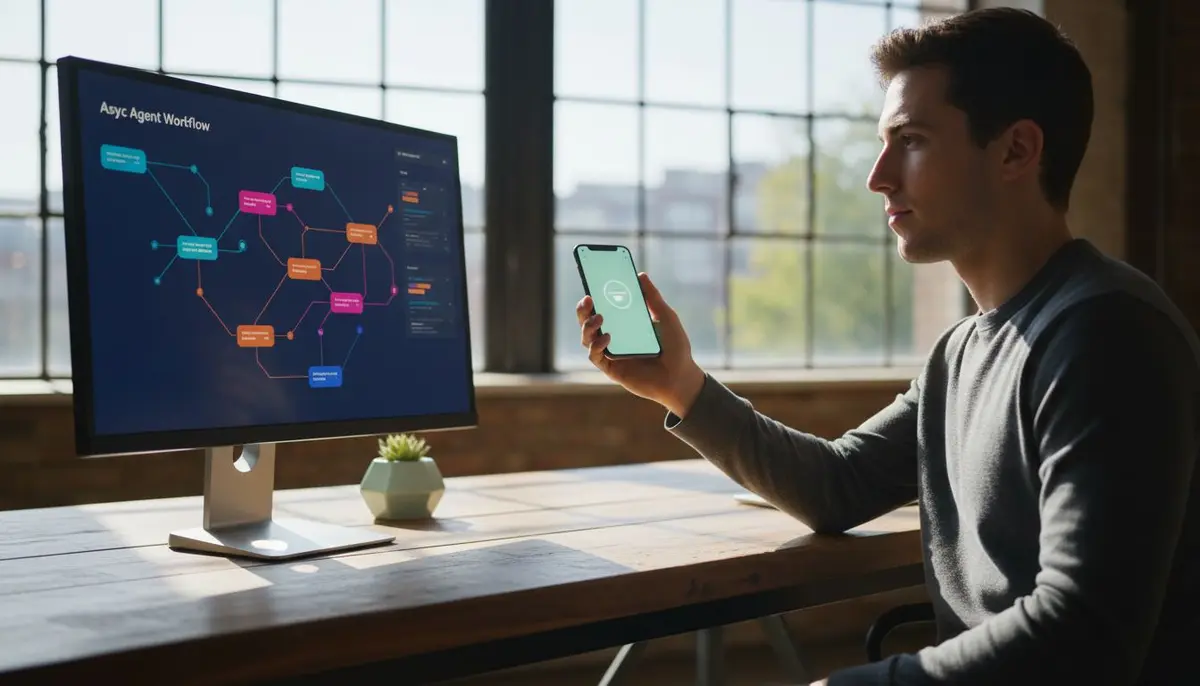
Monitor AI agent remotely by treating your phone as a control surface for agents running on your own computer. A dashboard shows what needs attention—blocked agents, approval requests, quota errors—and lets you approve, reject, or email instructions without opening a terminal or IDE. Push and email notifications keep you in the loop; you respond when it matters, not on a polling schedule.
Key takeaways
- Agent sessions run on your real computer, not a cloud sandbox—MobileVibe makes them reachable from your phone through a lightweight Desktop Connector and per-desktop tunnel.
- The dashboard is an inbox of what needs attention: blocked agents, approval gates, quota errors, and completed tasks.
- Push and email notifications alert you when an agent needs input, hits a limit, or finishes work—no constant polling required.
- Approval gates let you unblock agents from mobile; auto-approve rules reduce interruptions for trusted operations.
- Multi-agent workstreams let you run several agents in parallel across folders (often git worktrees) and track them all from one view.
- Privacy promise: agent history and local project files stay on your machine unless you send content to a provider; MobileVibe’s cloud stores routing metadata, not raw conversation history.
Why Remote Agent Monitoring Matters: The Async Coding Workflow
In 2026, developers build by directing AI coding agents—Claude, Codex, Cursor, Windsurf—not typing every line. You start a task, the agent works, and you check back. But agents don’t always finish cleanly. They need approval for risky operations, hit rate limits, encounter unexpected errors, or complete a step and wait for the next instruction.
The problem: if you’re away from your desk, you don’t know the agent is blocked until you return. The work stalls. The agent sits idle. You lose hours.
The async workflow: treat agent sessions like background jobs. Start them, monitor progress, unblock them when needed, and resume on desktop when the work demands a real keyboard and screen. This isn’t about coding on your phone—it’s about remotely driving agents on your own machine so they keep moving when you’re not at your desk.
MobileVibe enables this by making agent sessions on your real computer (macOS Apple Silicon or Windows 10+) reachable from a mobile-friendly UI. A lightweight Desktop Connector pairs your machine and exposes it through a private, per-desktop tunnel secured by a short-lived connect token. Your phone reaches the desktop; the desktop runs the agents. No cloud sandbox, no remote-desktop stream, no cramped mobile IDE.
Dashboard Inbox: What Needs Your Attention Right Now
The object you care about is a conversation—one agent chat or thread tied to a folder, an agent (Claude, Codex, Cursor, Windsurf), and a surface (CLI, IDE, or native extension). The dashboard is an inbox of conversations that need attention:
- Blocked or waiting for approval: the agent asked “Should I delete this file?” or “Run this migration?” and paused.
- Hit a quota or rate limit: the agent exceeded its request cap and can’t proceed without re-auth or a wait.
- Needs input: the agent asked a clarifying question or encountered an ambiguous instruction.
- Still working: the agent is running; you can check logs or output but don’t need to act.
- Changed or completed: the agent finished a step, wrote files, or committed code; you can review the diff or approve the next phase.
This inbox view surfaces what’s actionable without forcing you to open every conversation or poll every agent. You see the status, the last message, and the blocker—if any. You tap into the conversation that matters, ignore the ones that are safely running, and jump back to desktop when a task needs real review.
Push Notifications and Email Loops: Stay in the Loop Without Constant Polling
Push notifications alert you when an agent changes state: needs approval, hits a limit, finishes a task, or encounters an error. You don’t poll the dashboard every ten minutes—you get a notification, open the app, and respond.
Email loops extend this further. “Email this conversation” continues an existing agent session by sending your next instruction via email. The agent receives it, processes it, and replies. “Email this project” starts a new conversation in a folder. You can drive an agent entirely through email if you’re in a context where opening the app is inconvenient (e.g., replying from your inbox during a meeting).
Important: never send secrets, passwords, or API keys through email. Use the app or desktop for sensitive operations.
The combination of push and email means you stay in the loop without constant manual checking. The agent tells you when it needs you; you respond when it matters.
Approval Gates and Auto-Approve: Unblock Agents Without a Desktop
Agents often pause for approval before risky operations: deleting files, running migrations, installing packages, or making API calls. Without remote monitoring, the agent waits until you return to your desk.
Approval gates let you unblock agents from mobile. The conversation shows the agent’s request, the context (file path, command, reasoning), and two buttons: Approve or Reject. You tap Approve, the agent proceeds. You tap Reject, the agent stops or tries an alternative.
Auto-approve rules reduce interruptions for trusted operations. Where supported (varies by agent and surface), you can configure rules like “auto-approve file writes in /src” or “auto-approve npm install for known packages.” The agent proceeds without waiting; you review the changes later. This is useful for agents working in a safe sandbox folder or a git worktree where mistakes are cheap to revert.
Trade-off: auto-approve increases velocity but reduces oversight. Use it for low-risk operations in isolated folders, not for production deploys or destructive commands.
Reading Agent Output on Mobile: Logs, Diffs, and Error Context
When you check agent status mobile, you need enough context to decide: can this keep running, or does it need desktop attention?
Logs and output: the conversation view shows the agent’s recent messages, terminal output, and error traces. You can scroll through logs, see what the agent tried, and identify the blocker. For long outputs, the UI truncates and lets you expand or jump to the end.
Diffs: if the agent wrote or modified files, you can see a diff—added lines, removed lines, file paths. On mobile, this is readable but not ideal for deep review. Use it to confirm “yes, this looks right” or “no, this needs a real desktop review.”
Error context: if the agent hit an error, you see the stack trace, the command that failed, and the agent’s reasoning. Often, you can diagnose the issue and email a fix (“try installing libfoo-dev first”) without opening a terminal.
When to jump back to desktop: if the diff is large, the error is ambiguous, or the agent’s reasoning seems off, that’s a signal to resume on desktop. The mobile view is for triage and unblocking, not for deep code review or complex debugging.
Multi-Agent Workstreams: Tracking Parallel Tasks Across Folders
Developers often run several agents in parallel across related folders—git worktrees, clones, or separate projects. Each agent is a “lane” or “workstream” working on a different feature, bug, or experiment.
Example: you have three worktrees—feature-auth, bugfix-cache, experiment-ui—each with its own agent. One is blocked waiting for approval, one is still working, one finished and needs review. The dashboard shows all three conversations, their status, and what needs attention.
Why this matters: you can triage all lanes from one view. Unblock the agent that’s waiting, check the logs for the one that’s working, and review the diff for the one that finished. You don’t need to open three terminals or three IDE windows—just scroll the dashboard and tap into the conversation that matters.
Provider nuances: Claude IDE and CLI can share the native Claude store, so cross-surface resume is comparatively cheap. Codex has a separate IDE extension and MobileVibe’s native headless codex-cli; moving history between them may copy or fork the conversation. Cursor and Windsurf are separate host apps, not VS Code aliases—full history enumeration or Claude-like surface switching should not be assumed. MobileVibe handles these differences, but be aware that some agents resume more cleanly than others.
When to Jump Back to Desktop: Recognizing Blocker Patterns
Remote agent monitoring is for triage and unblocking, not for replacing your desktop. Recognize patterns that signal “this needs a real keyboard and screen”:
- Large diffs: if the agent changed 50+ files or rewrote core logic, you need a desktop IDE to review properly.
- Ambiguous errors: if the stack trace is cryptic or the agent’s reasoning is unclear, you need to dig into the code, not just read logs on a phone.
- Complex approval requests: if the agent asks “Should I refactor this entire module?” that’s a desktop decision, not a tap-to-approve.
- Merge conflicts or git issues: resolving conflicts or rebasing interactively is a desktop task.
- Performance or build failures: diagnosing why a build is slow or why tests are flaky requires desktop tools.
The mobile workflow: use your phone to check status, approve simple gates, and email instructions. When the task demands deep review or complex input, resume on desktop. The conversation history is there; you pick up where the agent left off.
Privacy in Remote Monitoring: What Stays Local, What Syncs
Privacy promise: agent history and local project files stay on your own computer unless you deliberately send content to an agent or provider. MobileVibe’s cloud stores desktop routing and session metadata—conversation IDs, status, timestamps—not raw conversation history or local directory contents.
How it works: the Desktop Connector exposes your machine through a per-desktop tunnel secured by a short-lived connect token. Your phone reaches the desktop; the desktop serves the conversation data. When you read logs or diffs on mobile, that content is fetched from your machine, not stored in MobileVibe’s cloud.
What this means: if your desktop is offline, you can’t monitor AI agent remotely—the tunnel is down. But your agent history never leaves your machine unless you send it to a provider (Claude, Codex, etc.) as part of a conversation.
Trade-off: this architecture prioritizes privacy over always-available cloud history. If you need to check agent status while your desktop is off, you’re out of luck. But you never worry about MobileVibe’s cloud storing your codebase or conversation transcripts.
FAQ
Can I see real-time agent output on my phone, or just summaries?
You see real agent output—logs, terminal messages, error traces—fetched from your desktop. It’s not a summary or a screenshot; it’s the actual conversation data. For long outputs, the UI truncates and lets you expand. If the agent is actively running, you may see a slight delay (a few seconds) as new messages arrive, but it’s close to real-time.
How do I approve or reject an agent decision from mobile without SSH or remote desktop?
The conversation view shows the agent’s approval request with context (file path, command, reasoning). You tap Approve or Reject. MobileVibe sends the decision to your desktop, the agent receives it, and proceeds or stops. No SSH, no terminal, no remote desktop—just a button in the app.
What happens if an agent hits a rate limit or quota while I’m away?
You get a push or email notification. The dashboard shows the conversation as “blocked” with the error message. You can check the logs to see what happened, then either wait for the quota to reset, re-auth if needed, or email the agent an alternative instruction. The agent won’t proceed until you unblock it or the limit expires.
Can I run multiple agents in parallel and monitor them all from one dashboard?
Yes. Each agent is a separate conversation tied to a folder and surface. The dashboard shows all active conversations, their status, and what needs attention. You can run agents in different worktrees, different projects, or different surfaces (CLI, IDE) and track them all from one view. This is the “multi-agent workstreams” workflow.
Does MobileVibe send agent history to the cloud, or does it stay on my machine?
Agent history stays on your machine. MobileVibe’s cloud stores routing metadata (conversation IDs, status, timestamps) to enable the tunnel and notifications, but not raw conversation history or local project files. When you read logs or diffs on mobile, that content is fetched from your desktop, not stored in the cloud.
How do I resume an agent conversation on my desktop after checking it on mobile?
Open the conversation in the agent’s native surface (Claude IDE, Codex CLI, Cursor, etc.). The history is there—MobileVibe doesn’t move or fork it unless you explicitly start a new conversation. For Claude, cross-surface resume (CLI ↔ IDE) is comparatively cheap because they share the native store. For Codex, moving between IDE extension and codex-cli may copy the history. For Cursor and Windsurf, treat each surface as its own conversation unless the host app supports history sharing.
What’s the difference between email notifications and push notifications for agent status?
Push notifications alert you in real-time when an agent changes state (needs approval, hits a limit, finishes). Email notifications do the same but also let you reply to continue the conversation—“Email this conversation” sends your next instruction via email, and the agent processes it. Push is for alerts; email is for alerts and interaction. Use push for quick checks, email for driving the agent when you’re not in the app.
Can I set up auto-approve rules so agents don’t wait for me to respond?
Where supported (varies by agent and surface), yes. Auto-approve rules let agents proceed with trusted operations—file writes in a safe folder, package installs, low-risk commands—without waiting for manual approval. This increases velocity but reduces oversight. Use it for isolated folders or worktrees where mistakes are cheap to revert, not for production or destructive operations. Check the agent’s documentation or MobileVibe’s settings for available rules.
Monitor AI agent remotely isn’t about replacing your desktop—it’s about staying in the loop and unblocking agents when you’re away. Start a task, check progress from your phone, approve gates, and jump back to desktop when the work demands it. If you’re tired of agents sitting idle while you’re in a meeting or commuting, try MobileVibe free and see how much faster your agents move when they don’t wait for you to return to your desk.